Menu Explanation
On this page
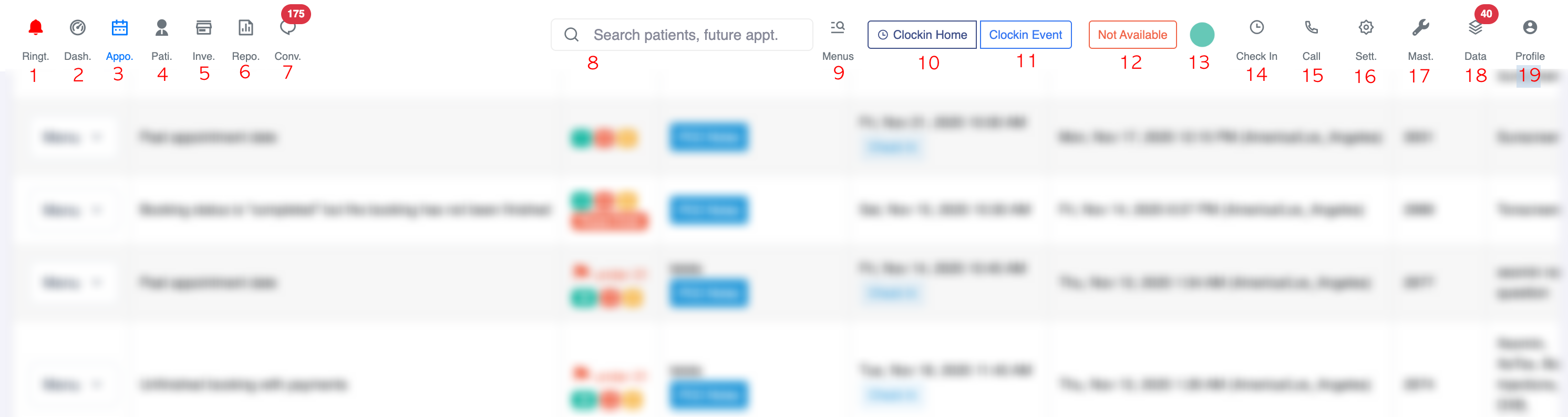
- 1. Ringtone
- 2. Dashboard
- 3. Appointments
- 4. Patients
- 5. Inventory
- 6. Reports
- 7. Conversations
- 8. Search box
- 9. Search menu
- 10. Clock in Home
- 11. Clock in Event
- This is for a clinic staff to clock in their time (if they work at the event). After it clicked, it will show "Clock out". The clinic staff should click the button to stop the timer.
- 12. Availability (for incoming call)
- 13. Twilio calling indicator
- 14. Checked In Patients
- 15. Calling Function
- 16. Settings
- 17. Master data
- 18. Data
- 19. Profile
Here are the menu on PMC:
1. Ringtone
If it is red, it means when you get a new email or new sms, you won't get any ringtone notification
2. Dashboard
This is your dashboard menu
3. Appointments
This is the appointments menu. If you click this, you will find some of the appointment menus that you can use for your day to day operations.
Please click here to get the details.
4. Patients
This is your patienst list data. You can search your patients list here, by their birthdays or search the brand new sign ups.
5. Inventory
From this menu you can manage your inventory
6. Reports
This is where you can get the reports related to your appointments
7. Conversations
You can communicate with your customers using sms or email through this menu
8. Search box
You can search for patients by name, phone number or booking id here
9. Search menu
You can search a menu faster just by search it here
10. Clock in Home
This is for a clinic staff to clock in their time (if they work from home). After it clicked, it will show "Clock out". The clinic staff should click the button to stop the timer.
11. Clock in Event
This is for a clinic staff to clock in their time (if they work at the event). After it clicked, it will show "Clock out". The clinic staff should click the button to stop the timer.
12. Availability (for incoming call)
This function is to set whether you are available for incoming call or not. If it says "Not available" it means that you can not be reached by incoming call.
13. Twilio calling indicator
If it shows green pulsating icon, it means you are connected to a twilio calling server.
14. Checked In Patients
When it clicked, it will show you the patients that already checked in. So you would know how many patients are still waiting to be served.
15. Calling Function
When it clicked, you can do outgoing call
16. Settings
This is the settings menu. From here you can set the call scripts, clinics, and voice mail template
17. Master data
This menu is to set master data
18. Data
This will list all data that you have
19. Profile
You can manage your profile here