Payments
On this page
- Payment Processing Guide
- Supported Payment Methods
- Processing Payments
- Using Square Terminal
- How to Set Up a Square Terminal
- Step 1: Prepare the Square Terminal
- Step 2: Pair the Terminal in PMC
- Step 3: Complete Pairing
- Processing a Payment with Square Terminal
- Important Notes
- MedspaCircle Partner App
- Processing a Payment
- Square Reader Payments
- Pairing the Reader
- Processing Payments Directly in PMC
- Steps
- Manual Payment Methods
- Online Payment Methods
- Verifying Payment
- Troubleshooting
- Square Reader Will Not Connect
- Incorrect Clinic Appears During Payment
- Processing Payments for Multiple Clinics
- Synchronizing Transactions with Square
- Important
Payment Processing Guide
Supported Payment Methods
Patients can pay using any of the following payment methods:
Square (Credit Card)
Cash
Cherry
Deposit (Wallet)
Xperience
Square Terminal
Other
Processing Payments
Using Square Terminal
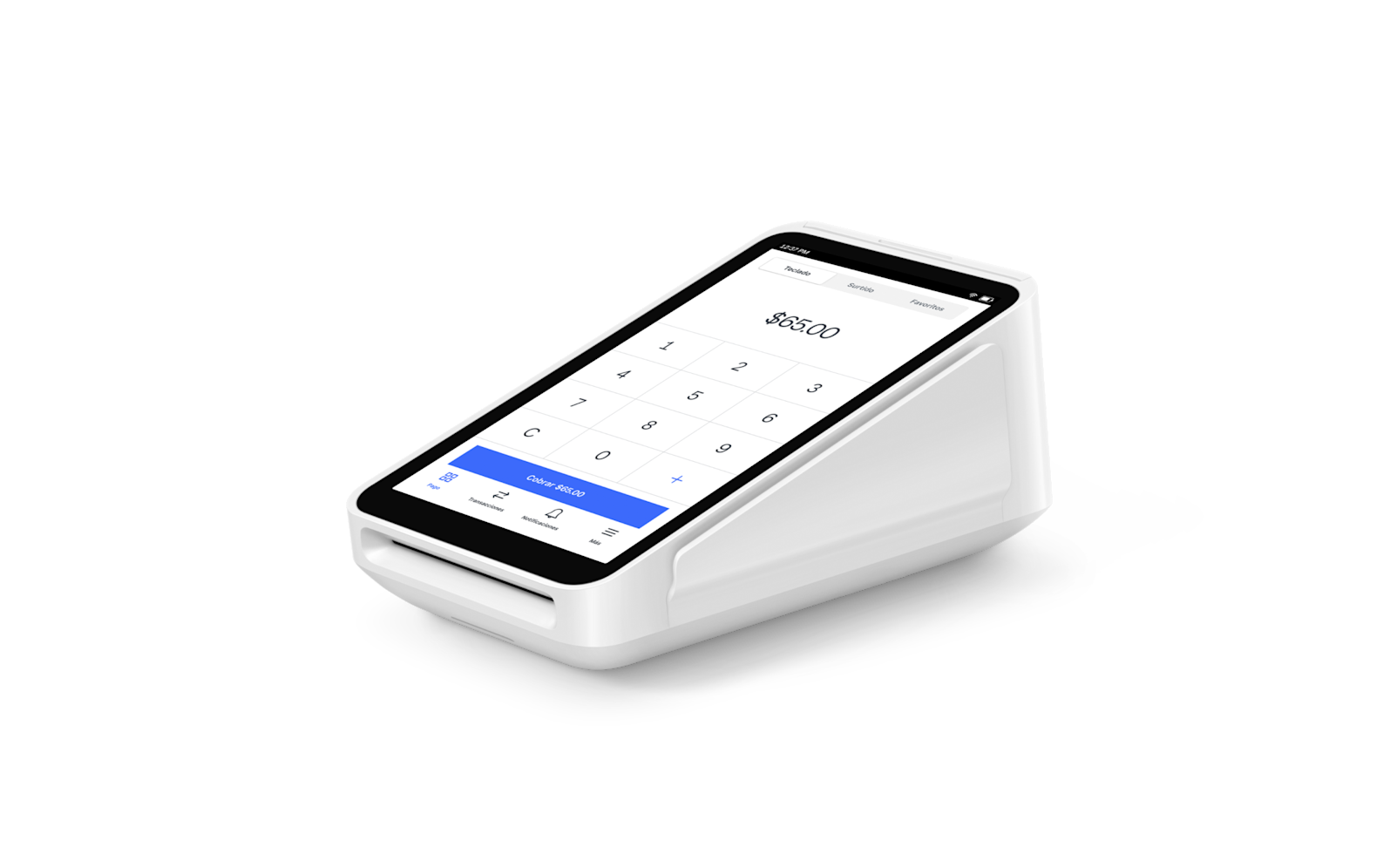
How to Set Up a Square Terminal
To accept payments through a Square Terminal, complete the following steps.
Step 1: Prepare the Square Terminal
On the Square Terminal:
Turn on the device.
Tap Sign In.
Select Use a Device Code.
Step 2: Pair the Terminal in PMC
In PMC:
Navigate to Clinics.
Select the desired clinic.
Click the Square Terminal icon.
Open the Square Terminal page.
Click Add Terminal.
Enter the required information:
Branch
Terminal Name
Click Submit.
A pairing code will appear in the terminal list.
Note: If you only have one physical Square Terminal but use it across multiple branches, create one terminal entry for each branch. The same physical device can be paired with different branches as needed using the pairing process. You do not need to create multiple terminal records for the same device.
Step 3: Complete Pairing
On the Square Terminal:
Enter the pairing code generated in PMC.
Tap Sign In.
The terminal is now ready to accept payments.
Processing a Payment with Square Terminal
Open the PCC Checkout tab.
Click Payment by Patient.
Select Square Terminal.
Enter the payment amount.
Click Connect to Terminal.
On the Square Terminal, have the patient tap, insert, or swipe their credit card.
Once approved, the payment will be completed.
Important Notes
After processing a payment, Square automatically adds a note to the transaction. Do not edit or remove this note.
In Booking Details → Staff Checkout, click Sync to Square to synchronize the payment with Square reporting.
Verify all payment information before syncing. Synchronization can only be performed once.
MedspaCircle Partner App

The MedspaCircle Partner App allows staff to process patient payments directly from a mobile device.
After installing the app, sign in using the same credentials you use for PMC.
Processing a Payment
Enter the Booking ID.
Tap Search Bookings.
Select the booking.
Scroll to Select Payment Method.
Choose the patient's payment method.
Enter the payment amount.
Tap Continue.
Square Reader Payments
After selecting Square as the payment method:
Tap Initialize Square.
If initialization is successful, you will see:
"Square has been initialized using the credentials of Clinic Name."
Verify that the displayed clinic is correct before continuing. Payments will be processed under the displayed Square location.
If the wrong clinic is shown, refer to the Troubleshooting section.
Pairing the Reader
Tap Settings.
Tap Pair a Reader.
Turn on the Square Contactless Reader.
Hold the power button until the LED flashes orange.
Wait for the reader to appear under Devices.
If firmware is updating, wait until the update completes.
Return to the payment screen.
Tap Continue to Payment.
Have the patient tap their card on the reader.
After a successful transaction, the payment will appear on the Booking Payment Setup screen.
Processing Payments Directly in PMC
If the Partner App is unavailable, PMC can generate a payment link or QR code that patients can use on their own device.
Steps
Click Payment by Patient.
Select a payment method.
Manual Payment Methods
The following payment methods are entered manually:
Cash
Cherry
Other
Venmo
Xperience
Online Payment Methods
If you select:
Square
Stripe
PayPal
PMC generates a QR code and payment link.
The patient can:
Scan the QR code, or
Use the payment link sent by text or email.
Once payment is completed, PMC automatically updates the payment status.
Verifying Payment
Always verify the Payment Discrepancy before completing the booking.
$0 discrepancy indicates the patient has paid the full amount.
A red discrepancy indicates an outstanding balance.
If the patient has not paid the full amount:
Check Didn't Pay.
Save the booking.
Review all payment information before completing the booking and synchronizing the transaction.
Troubleshooting
Square Reader Will Not Connect
If the Square Reader cannot connect:
Open the device's Bluetooth settings.
Locate the Square Reader.
Select Forget Device.
Restart the iPhone or iPad.
Hold the Square Reader power button for 10 seconds until it flashes orange.
Open the MedspaCircle Partner App.
Pair the reader again.
Incorrect Clinic Appears During Payment
Square SDK initializes only once each time the Partner App is opened.
If the incorrect clinic appears:
On the Square payment screen, tap Deauthorize Device.
Close the Partner App.
Reopen the app.
Search for the booking again.
Start the payment process.
Processing Payments for Multiple Clinics
If you attempt to process a payment for a different clinic, you may see the following message:
"Square has been initialized using the credentials of Clinic Name. If you want to process the payment for another clinic, please restart the app."
If you continue, the payment will be processed using the currently initialized Square location.
To switch clinics:
Forget the Square Reader in Bluetooth settings.
Hold the Square Reader power button for 10 seconds until it flashes orange.
Close the Partner App.
Reopen the app.
Pair the Square Reader again.
This is a limitation of the Square Reader. A reader can only remain paired with one Square location at a time. Whenever the location changes, the reader must be reset and paired again.
Synchronizing Transactions with Square
The Sync to Square button copies PMC transactions into Square's reporting system.
Important
If the payment was already processed directly through the Square app and recorded in PMC as Other Payment, do not click Sync to Square.
Doing so will create a duplicate transaction in Square reports.